


A launch-monitor session ends with a familiar little problem. The shots are saved, the range bucket is empty, and a file is waiting on the desktop before any useful review can begin. It might be a CSV file from a Garmin R10, an export from SkyTrak, or an XLSX workbook someone prepared for a coach.
The choice between a CSV file vs Excel workbook isn't just a matter of personal spreadsheet preference. It decides what the next app, script, coach, or fitting workflow can read. A plain-text export usually keeps the raw table portable, while an Excel workbook can preserve formulas, formatting, charts, and multiple sheets. The wrong format can change the practice data before anyone studies a single swing.
Table of Contents
- The Export Sitting on Your Desktop
- What a CSV File Actually Is
- What an Excel Workbook Actually Is
- How Launch Monitors Deliver Your Data
- Where Excel Quietly Breaks Down
- Matching the Format to Your Workflow
- A Pre-Import Checklist for Practice Data
The Export Sitting on Your Desktop
The session has just finished. A golfer opens the export folder and sees rows of numbers that should describe every shot, including carry distance, club path, spin rate, face angle, ball speed, and smash factor. The file extension looks like a minor detail, but it determines whether those values travel cleanly into the next part of the workflow.
A CSV file is usually the safer starting point for raw launch-monitor data. It gives an import tool a flat table of values, with each shot represented as a row and each measurement represented as a field. That simplicity helps when a practice application, coaching script, or analysis service needs to map columns without interpreting a workbook's layout.
An Excel workbook serves a different job. It can turn the same shot rows into a readable coaching document, add a notes sheet, calculate averages, apply conditional formatting, and present a chart of carry distance by club. Those additions are useful after the data has arrived safely. They can become a liability when an import destination expects one predictable table.
The first downstream decision
Microsoft describes the distinction clearly. A CSV export saves only the active sheet, while a modern Excel worksheet supports 1,048,576 rows and 16,384 columns. The limits apply to the spreadsheet environment, not to the plain-text CSV format itself, as explained in Microsoft's guidance on oversized Excel data sets.
That difference matters for a golfer who stitches together practice sessions. A CSV file can contain more rows than an Excel worksheet can display in one sheet, but opening that CSV in Excel can truncate data beyond the worksheet ceiling. The export may still exist on disk, yet the application used to inspect it won't show the complete session history.
Practical rule: Preserve the untouched CSV before opening or editing it. Create a separate workbook for coaching notes, charts, and summaries.
The choice becomes easier when the destination is known. Raw data heading into software or a repeatable analysis pipeline generally belongs in CSV. A printable lesson report, a club-gapping dashboard, or a workbook with manual annotations generally belongs in XLSX. The extension should follow the next task, not the golfer's attachment to one spreadsheet application.
What a CSV File Actually Is
A CSV file is plain text. Each line represents a row, and a delimiter separates the fields within that row. A launch-monitor export may begin with headers, then list shot records for club speed, ball speed, carry distance, club path, face angle, and spin axis.
CSV preserves values and their order. It does not preserve an Excel-style worksheet with cell colors, borders, formulas, charts, macros, embedded video, or separate tabs. That narrow structure lets practice software, scripts, and other programs read the file without the original export application.
Why the simplicity helps
CSV's long history explains its role in machine-to-machine exchange. Comma-delimited data appeared in IBM Fortran input and output in 1972, was formalized in FORTRAN 77 in 1978, and received a broader internet standard in 2005 through RFC 4180's CSV reference. For a golfer, the practical result is a simple handoff from a launch monitor to an import workflow.
Delimiter choice can still break that handoff. One export may use commas, while another uses semicolons or tabs, especially when regional settings treat the comma as a decimal separator. Encoding creates another failure point. A file with unusual characters in club names, equipment labels, or session notes can display incorrectly if the receiving software expects a different character encoding.
Quotation rules matter too. If a field contains a comma, the exporter can wrap it in quotation marks. If the field contains a quotation mark, CSV conventions provide a way to escape it. A clean club-speed column rarely causes trouble. A session description, equipment name, or coaching note with punctuation can shift every following value if the exporter handles those characters incorrectly.
A typical raw row contains:
- Shot identity: A session or shot identifier.
- Club measurements: Club speed, club path, face angle, and attack angle.
- Ball measurements: Ball speed, launch angle, spin rate, and carry distance.
- Context: Club name, timestamp, range session, or practice block.
Headers vary by launch monitor. One export may use Club_Speed, while another uses Club Speed or a shortened label. The receiving practice software must map those names to its expected fields before import. A column-mapping step is normal, not evidence that the CSV is damaged.
The trade-off
CSV's portability also limits what reaches the downstream system. It cannot show which cells were manually edited, which values came from formulas, or which colors mark a poor strike. If a golfer exports an Excel workbook to CSV, this overview of CSV and Excel trade-offs notes that formulas, formatting, charts, images, validation rules, conditional formatting, and all but the first worksheet are stripped away.
The measurements may survive while the workbook's meaning disappears. A formula-based consistency score becomes a static value, coaching notes on another tab vanish, and a chart must be rebuilt. CSV works well as an interchange file. It does not preserve a finished workbook.
What an Excel Workbook Actually Is
An .xlsx file is a structured workbook container, not a larger CSV. It can hold worksheets, styles, shared strings, formulas, charts, and workbook metadata. The format uses a zipped XML package, which helps explain why CSV and Excel differ in structure and processing overhead.
That structure matters after a launch-monitor export reaches practice software. A coach can keep raw shots on one sheet, calculated results on another, and written observations on a third. A golfer can compare carry distance with a target, color outliers, and chart shots by club without changing the original measurement columns.
What XLSX preserves
For golf practice, an Excel workbook can preserve more than the shot values:
| Workbook feature | Golf use |
|---|---|
| Formulas | Calculate averages, gaps, dispersion, or consistency scores |
| Formatting | Highlight mishits, distance bands, or launch conditions |
| Multiple sheets | Separate sessions, clubs, equipment setups, and notes |
| Charts | Show carry patterns, spin windows, or club-path tendencies |
| Validation and filters | Standardize club names and review selected shots |
These features support analysis and communication. A coach can filter a student's shots, place annotations beside the relevant rows, and show a practice pattern without handing over an unprocessed stream of comma-separated values.
A workbook also works as a compact reporting layer. The original export can remain untouched while a separate sheet summarizes one practice block with a club-by-club table, a chart, and comments about strike quality. That separation protects the raw record while making the results easier to review.
Where the structure creates friction
The same structure that preserves context can complicate downstream imports. A simple script can read a CSV as text. Processing XLSX reliably requires software that understands workbook packages, sheets, formulas, and styles. A hidden tab, unexpected sheet name, or formula dependency can then interfere with an importer that expects one flat table.
The destination may also impose boundaries. Microsoft lists the modern Excel worksheet maximum as 1,048,576 rows and 16,384 columns in its text and CSV import guidance. A CSV file has no format-imposed row ceiling, although the application reading it still depends on available memory and its own import limits.
For a launch-monitor workflow, choose based on what the next system must receive. CSV keeps the interchange layer, usually the shot rows and field values. XLSX keeps the presentation and calculation layer, including sheets, formulas, formatting, and charts. Export the flat data for an importer, and keep the workbook when the analysis itself needs to travel with the measurements.
How Launch Monitors Deliver Your Data
Golfers don't receive launch-monitor data through one universal export path. The source application may provide a CSV, a workbook, a compressed session package, or an API response that must be converted before another system can use it.
Garmin documents a direct session path in which a user selects an activity and chooses “Export to CSV” in the Golf app, as shown in Garmin's driving-range session export instructions. That flat export is a practical interchange point for shot rows, but field names and available measurements still depend on the source session and the receiving importer.
Rapsodo, SkyTrak, FlightScope, Uneekor, GSPro, and Awesome Golf can appear in different parts of the same practice workflow. One system may provide raw values, another may package supporting media, and a third may expect the golfer to map columns before analysis. A workbook can add notes and charts, but those additions don't guarantee that an importer will read every sheet.
Export paths and preservation
The following table separates what the format can preserve from what a particular importer may choose to read. “Varies” is intentional. A file extension alone doesn't prove that a field exists or that the destination maps it correctly.
| Launch Monitor | Default Export | Preserves Spin Axis | Preserves Club Path | Accepts CSV Import | Accepts XLSX Import |
|---|---|---|---|---|---|
| Garmin R10 | CSV export available | Varies by export | Varies by export | Varies by destination | Varies by destination |
| Rapsodo | Export format varies by session workflow | Varies by export | Varies by export | Varies by destination | Varies by destination |
| SkyTrak | Export format varies by workflow | Varies by export | Varies by export | Varies by destination | Varies by destination |
| FlightScope | Export format varies by workflow | Varies by export | Varies by export | Varies by destination | Varies by destination |
| Uneekor | Export format varies by workflow | Varies by export | Varies by export | Varies by destination | Varies by destination |
A column such as Ball_Speed may arrive intact while Club_Path is renamed, omitted, or placed on another sheet. A coach should inspect headers rather than assume that the export contains every metric displayed on the launch monitor.
For golfers moving data into practice software, Dialed Golf's launch-monitor app workflow illustrates why the import stage matters. The useful file is the one the destination can map, validate, and preserve, not necessarily the one with the most visual polish.
Where Excel Quietly Breaks Down
A golfer finishes a session, opens the workbook, and sees clean tabs for shots, notes, and summaries. The trouble starts when that file leaves the desktop and enters practice software. A workbook built for reading can carry formatting and calculations that the importer ignores, misreads, or cannot use.
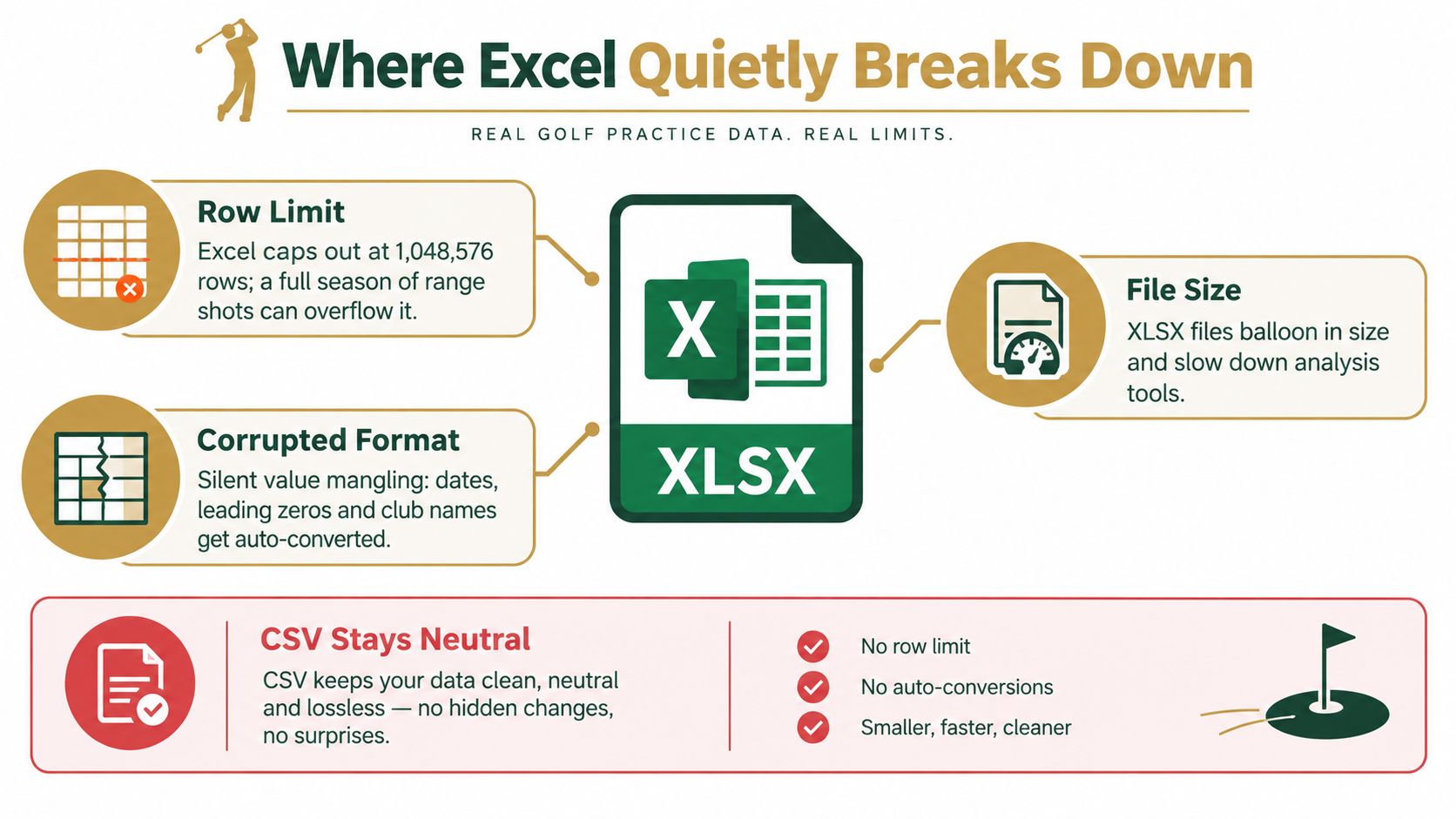
The first constraint is scale. Excel supports 1,048,576 rows and 16,384 columns per worksheet, while a CSV file has no format-imposed row limit, as explained in this guidance for opening large CSV files. A long practice archive may remain intact as text but fail when someone tries to place it into a single worksheet. The failure happens before the downstream system ever sees the shots.
Automatic interpretation creates another risk. Spreadsheet software can reinterpret identifiers, dates, decimal separators, and leading zeros when a raw export is opened and saved. A session ID that resembles a number may display in scientific notation. A player or club label with leading zeros may change. The importer then receives altered values, even though the workbook still looks tidy.
The round-trip problem
A workbook can lose its working behavior during a round trip between applications. A formula tracking smash-factor consistency may calculate correctly in the original file, then export as a static value or fail after another application saves the workbook. The visible result remains, but the calculation behind it has disappeared.
Tabs create a separate break in the chain. One workbook might hold shot data, coach notes, and setup details on separate sheets. CSV export keeps only the active sheet. If the destination expects one flat table, it cannot recover information that was left on another tab.
Speed is part of the decision
CSV gives a script rows and delimiters to parse. XLSX also requires the importing tool to process workbook structure, styles, shared strings, and sheet metadata. This CSV and Excel performance comparison reports CSV parsing as 3 to 5 times faster in code. It also describes a 100 MB CSV opening in about 2 seconds in Python versus about 18 seconds for an equivalent Excel file, with Excel using roughly three times more memory.
Actual results vary with the importer, computer, and file contents. The practical point remains clear: presentation features can become processing overhead. Use the workbook when a golfer or coach needs to read, edit, and annotate the session. Use the CSV when practice software needs to ingest predictable rows without losing time or misreading the file.
Matching the Format to Your Workflow
The right choice depends on what the golfer needs to do next. A raw dump for repeated import has different requirements from a lesson workbook that a coach will print, annotate, and discuss.
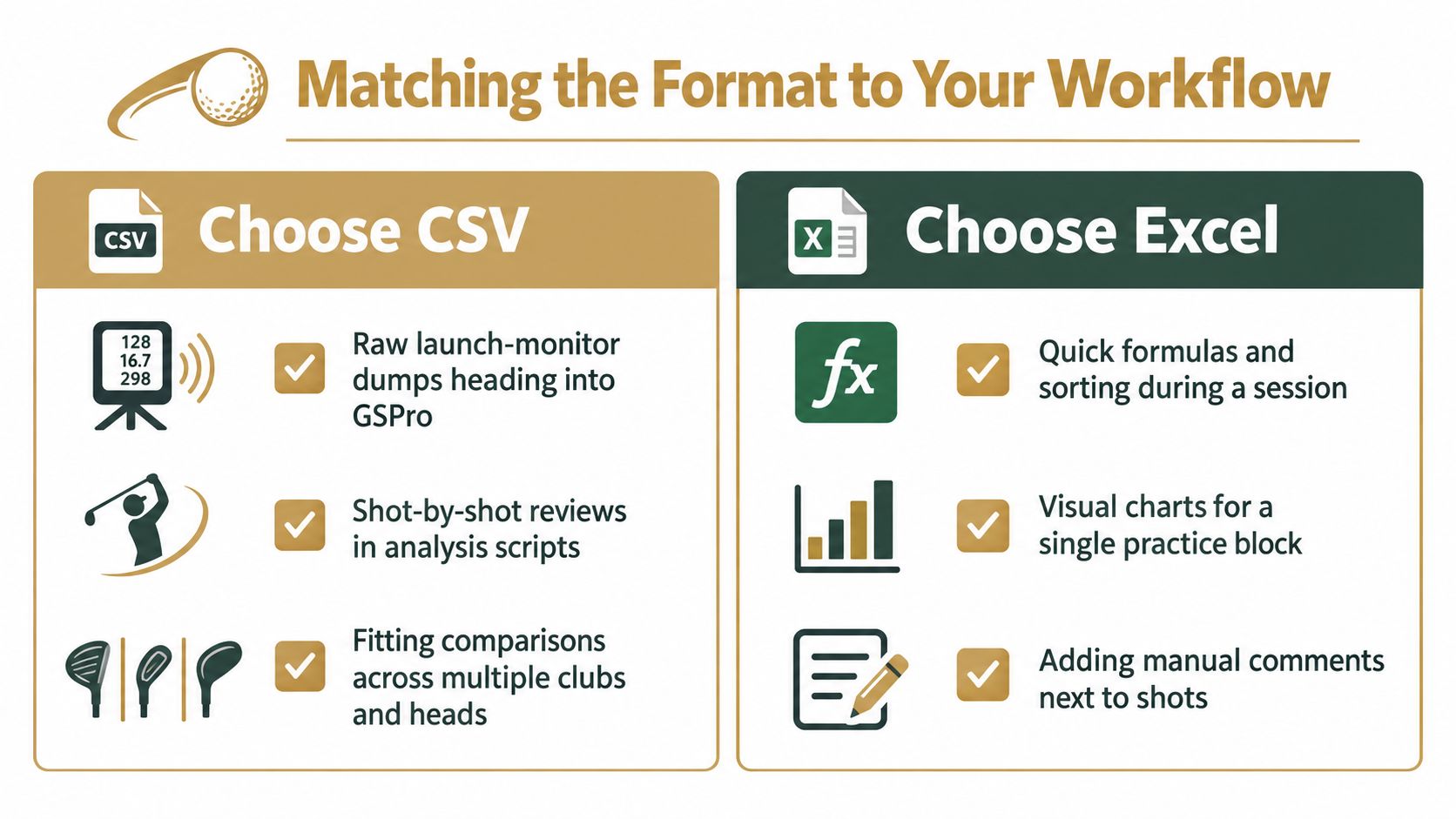
Choose CSV for movement and repeatability
CSV is the practical default for:
- Raw launch-monitor dumps: Keep the original rows intact before they enter practice software.
- Shot-by-shot review: Feed a flat table into an analysis script or mapping tool.
- Fitting comparisons: Combine sessions from different clubs, heads, shafts, or ball setups without carrying presentation layers.
- Long-term archiving: Retain a portable source file that can be read by different systems later.
The format works especially well when the next system needs predictable headers and one row per shot. It also makes it easier to detect missing fields. If Carry_Distance or Club_Path disappears, the column audit exposes the problem before a chart gives a misleading impression.
Choose Excel for interpretation
XLSX makes more sense when the golfer needs:
- A dashboard: Use formulas, filters, pivot tables, and conditional formatting to summarize a practice block.
- A coach-ready report: Put selected shots, comments, and charts into a document that another person can review quickly.
- Manual context: Add notes beside shots without pretending those notes came from the launch monitor.
- A compact comparison: Compare carry distance by club or setup in a controlled workbook.
A useful default is CSV as the archive plus an XLSX summary workbook refreshed monthly. The raw file remains untouched, while the workbook becomes a replaceable reporting layer. If the golfer starts tracking more than three clubs at once, an XLSX summary can make the review easier. If a practice application chokes on file size or rejects workbook structure, the workflow should switch back to the original CSV.
The gap analysis workflow for launch-monitor practice benefits from this separation. Raw shots support repeatable comparison, while the workbook summary can present the conclusions without becoming the only copy of the evidence.
A Pre-Import Checklist for Practice Data
A launch-monitor file should pass a short audit before it enters practice software. The audit catches problems that are much harder to diagnose after a failed import, an empty chart, or a session with missing shots.
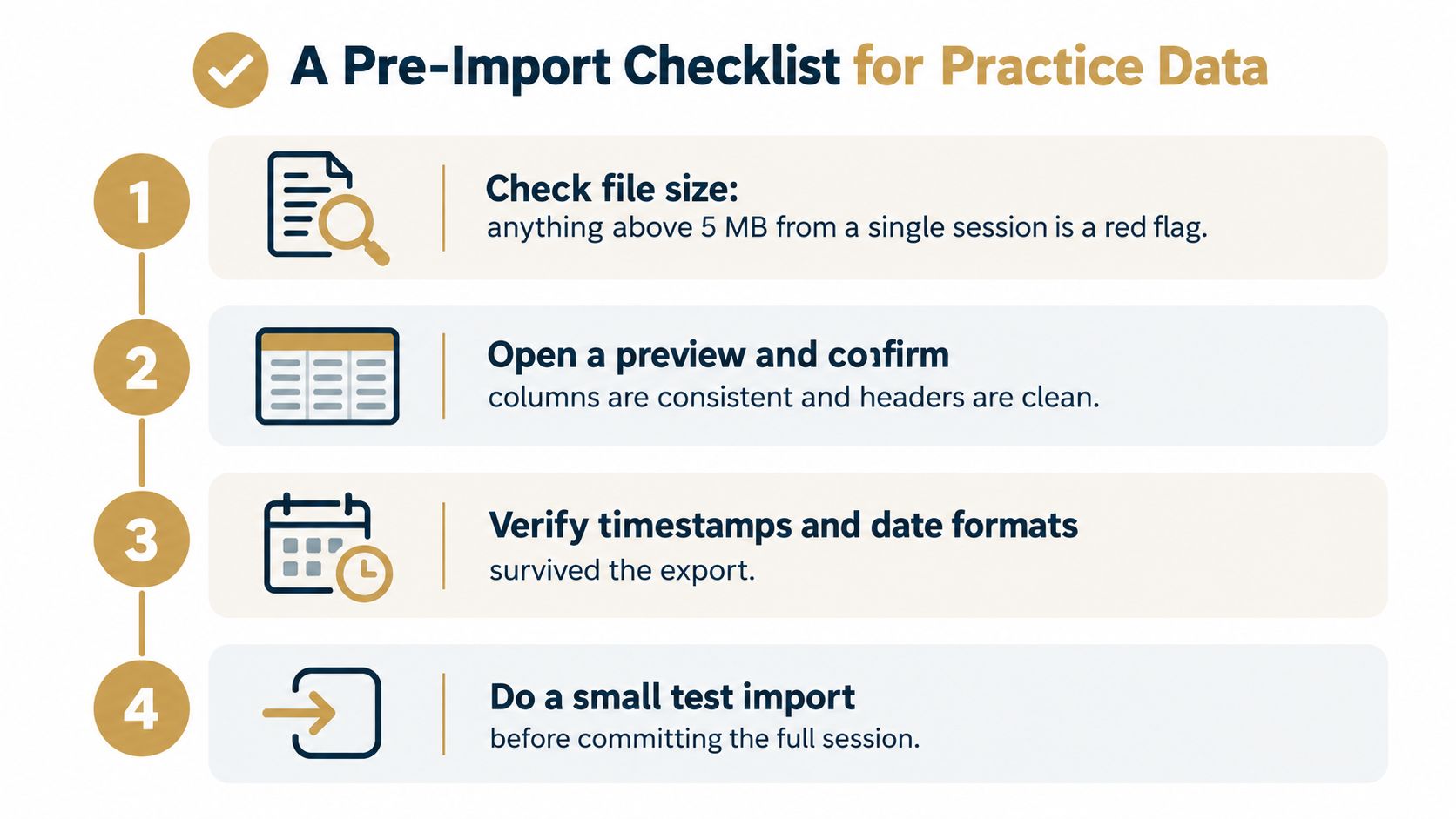
Four checks before the upload
Check the file size. Anything above 5 MB from a single session deserves inspection. The file may contain several ranges, duplicated content, embedded media, or a worksheet that has already hit an application limit.
Audit the headers. Open a preview and compare the columns with the launch monitor's specification or export description. Missing
Club_Speed,Carry_Distance,Club_Path, orBall_Speedfields can cause downstream charts and filters to misfire.Count the sheets. A multi-sheet XLSX can be useful for coaching notes, but a destination that reads one flat CSV won't see the other tabs. Confirm which sheet contains the shot rows before exporting anything.
Choose for the destination. If the file ends in Awesome Golf, GSPro, or a cloud-sync workflow, CSV is generally the safer interchange choice when the destination supports it. If it ends in a coach's template with lookup formulas and conditional formatting, retain XLSX and don't round-trip it through another spreadsheet application.
The most important check concerns regional formatting. Before re-exporting an XLSX as CSV, verify that decimal separators match between the source and destination. A file that treats commas as field separators while also treating them as numeric punctuation can produce blank or shifted values across the shot table.
Test a small sample first
A small test import is faster than debugging a full season. Open the result and confirm that shot count, timestamps, club names, carry distance, and the key swing fields appear in the expected columns. Then compare a few rows with the original export.
The CSV import checklist for launch-monitor data follows the same practical principle: validate the file before trusting the analysis. A clean import preserves the golfer's actual practice record. A polished workbook with missing or transformed values doesn't.
Dialed Golf connects launch-monitor practice with CSV and file imports from Garmin, Rapsodo, SkyTrak, FlightScope, Uneekor, GSPro, Awesome Golf, and more, while its desktop workflow supports live pairing first with Garmin R10 and expanding support. Visit Dialed Golf to review the desktop practice workflow, the pocket-caddy consumer app, and the Dialed Academy membership and front-desk offering for ranges and clubs.