

A lot of golfers end a range session with a file that looks more useful than it is. The export opens. The rows are there. Ball speed, spin, carry, launch, club. It feels like the hard part is done.
Usually it isn't.
A successful launch monitor CSV import isn't the moment a file loads. It's the moment a session becomes clean enough to query later without second-guessing what the fields mean, whether the shot count is complete, or whether one device labeled a value differently than another. That difference is what separates a pile of exported rows from practice data you can use.
Table of Contents
- Why Launch Monitor CSV Import Matters More Than Uploading
- What Your CSV Needs Before You Import Anything
- The Four Stage Import Workflow That Actually Works
- Device Specific Mapping for Garmin Rapsodo SkyTrak and More
- Fixing the Most Common Import Failures Fast
- Making Imported Data Usable for Practice and Gapping
Why Launch Monitor CSV Import Matters More Than Uploading
The file on a phone or laptop after practice is often the only bridge between one hitting session and the next. Across the current launch monitor and simulator stack, CSV has effectively become the common handoff format. One compatibility overview notes imports from major launch monitors and simulators plus a generic CSV path, and another operator lists imports across multiple hardware ecosystems, which supports the practical reality that CSV now acts as a de facto interoperability layer by 2026 according to this launch-monitor coaching overview.
That sounds simple. It isn't.
A technically valid upload can still produce junk if the session isn't queryable afterward. A seven iron session mixed with wedges and driver might all load correctly, but if club labels drift, units don't match, or the importer treats calculated spin the same as measured spin, the dataset becomes noisy fast. The golfer sees numbers. The analysis sees ambiguity.
The real job is preserving session meaning
Most golfers don't need another export button. They need a way to keep one practice session distinct from another, preserve what each field represents, and carry that structure into later analysis.
That matters even more when practice lives across more than one environment. A player might hit on the range one day, in a garage sim the next, then review trends later. The software only keeps that history useful if each import lands as a coherent session rather than a flat spreadsheet dump. That's the difference between seeing "today's carry average" and being able to ask better questions over time, such as whether launch changed with one club under one setup.
A launch monitor CSV import fails long before an error message appears. It fails when the data loads but can't be trusted.
Dialed Golf handles this from a broader golfer-record view. The product stack is three products, one golfer record, one Pro plan. The consumer app is a pocket caddy on the course and is currently in TestFlight rather than App Store general availability. Desktop is built for launch-monitor practice at the range or in a garage sim, with live pair first for Garmin R10 and expanding, plus CSV import from Garmin, Rapsodo, SkyTrak, FlightScope, Uneekor, GSPro, Awesome Golf, and more. Golfers who want the larger context around that setup can read the related overview of a launch monitor app workflow.
Clean imports support one golfer record
One golfer record across app and desktop only works when imported sessions are clean enough to connect. If one file says "7I," another says "7 Iron," and another exports club names in a different language variant, those aren't cosmetic issues. They change whether the session can be grouped, compared, and searched later.
That is why launch monitor CSV import matters more than uploading. Uploading moves a file. Importing should preserve meaning.
What Your CSV Needs Before You Import Anything
Most bad imports start before the import button gets clicked. The file itself is usually the problem.
The fastest way to avoid a broken session is a short pre-flight check. Not a full audit. Just enough to catch the stuff that breaks parsing, mapping, or row counts.
Check the file before checking the data
Start with the structure.
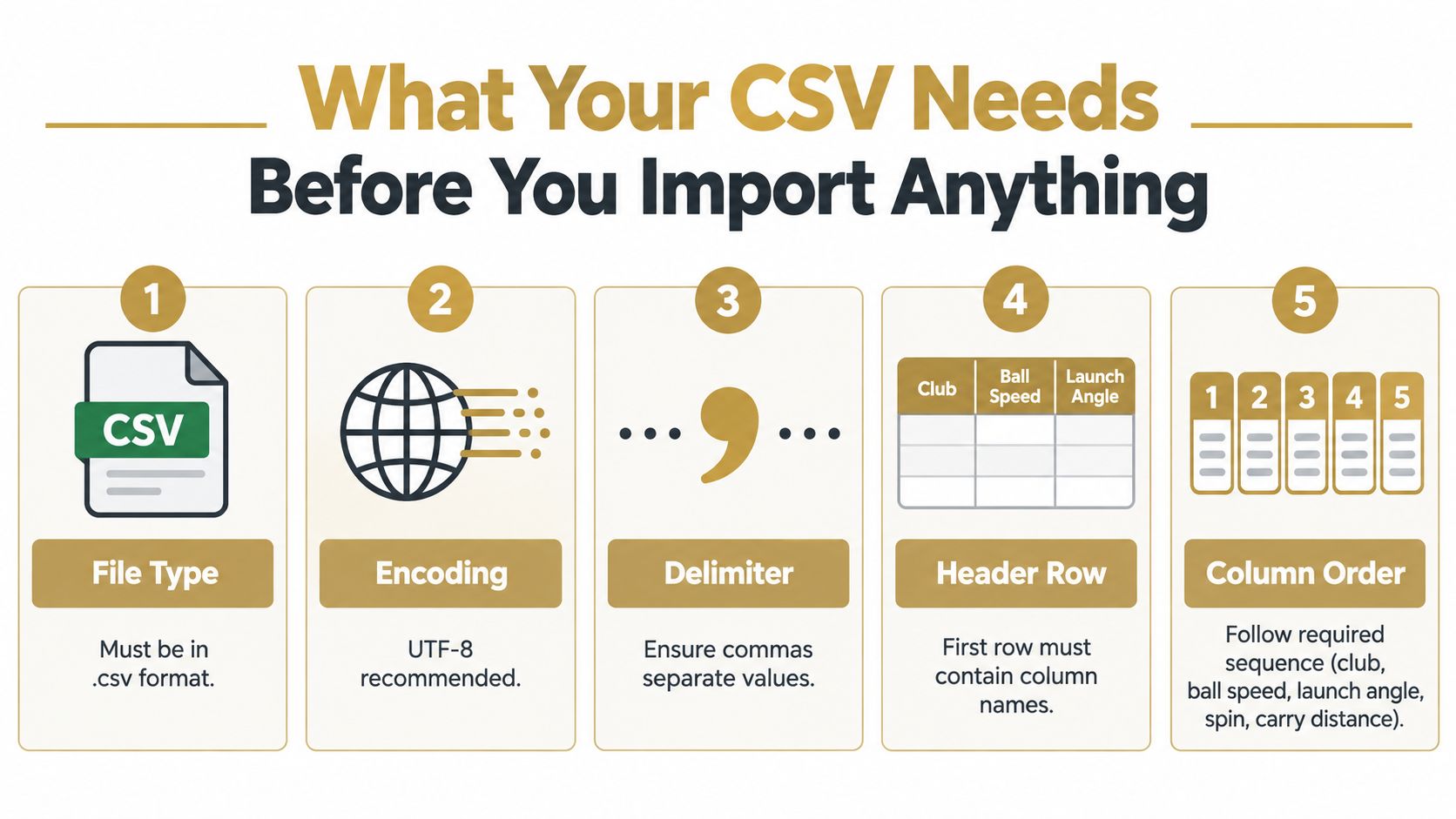
- File type: It needs to be an actual.csv file, not a spreadsheet saved in a different format and renamed.
- Encoding: UTF-8 is the safest default. If special characters look wrong, encoding is one of the first suspects.
- Delimiter: Some exports use commas, some use another separator. If every row appears collapsed into one long field, the delimiter is wrong for the parser.
- Header row: The first row should contain column names. If the first row is a title, note, or blank line, the importer can treat real headers as data.
- Column order: Some systems map by header name, some rely partly on position. If a vendor changes template order, imports can drift.
Those checks sound basic because they are basic. They also catch a lot.
Treat one CSV as one session
For launch monitor work, the cleanest operating assumption is that one CSV equals one session, even when the file contains multiple clubs. That aligns with how compatibility pages describe session imports across brands and sim ecosystems, where a single CSV commonly represents one session and still needs post-import shot-count verification according to this compatibility reference.
That means the golfer should know the expected shot count before importing. If the session should contain a certain number of shots and the importer lands fewer, the import isn't done just because it completed. Rows may have failed validation, been skipped because of malformed values, or broken on an unexpected header.
Pre-flight rule: Count what the session should contain before the file touches the importer.
Hidden issues that break otherwise good files
A file can look fine in a spreadsheet and still break in a parser. Common reasons include:
- Invisible whitespace: Leading or trailing spaces in header names can create near-duplicate fields.
- Language variants: Club names and metric labels can change across export settings.
- Copied edits: Manual fixes sometimes introduce quote marks or formatting characters that weren't in the original export.
- Generic export paths: A generic CSV route can work well, but only if the headers are sensible and consistent.
The practical move is to open the file once before import and scan the first few rows plus the header line. Look for obvious drift, mixed units, blank columns, and club labels that don't match the rest of the file. If the file already looks messy, the import won't clean it by magic.
The Four Stage Import Workflow That Actually Works
A session ends, the export looks clean, and the upload still goes sideways. Usually the file is not the problem by itself. The problem is that a launch monitor CSV import is being treated like a file transfer instead of a data-quality workflow.
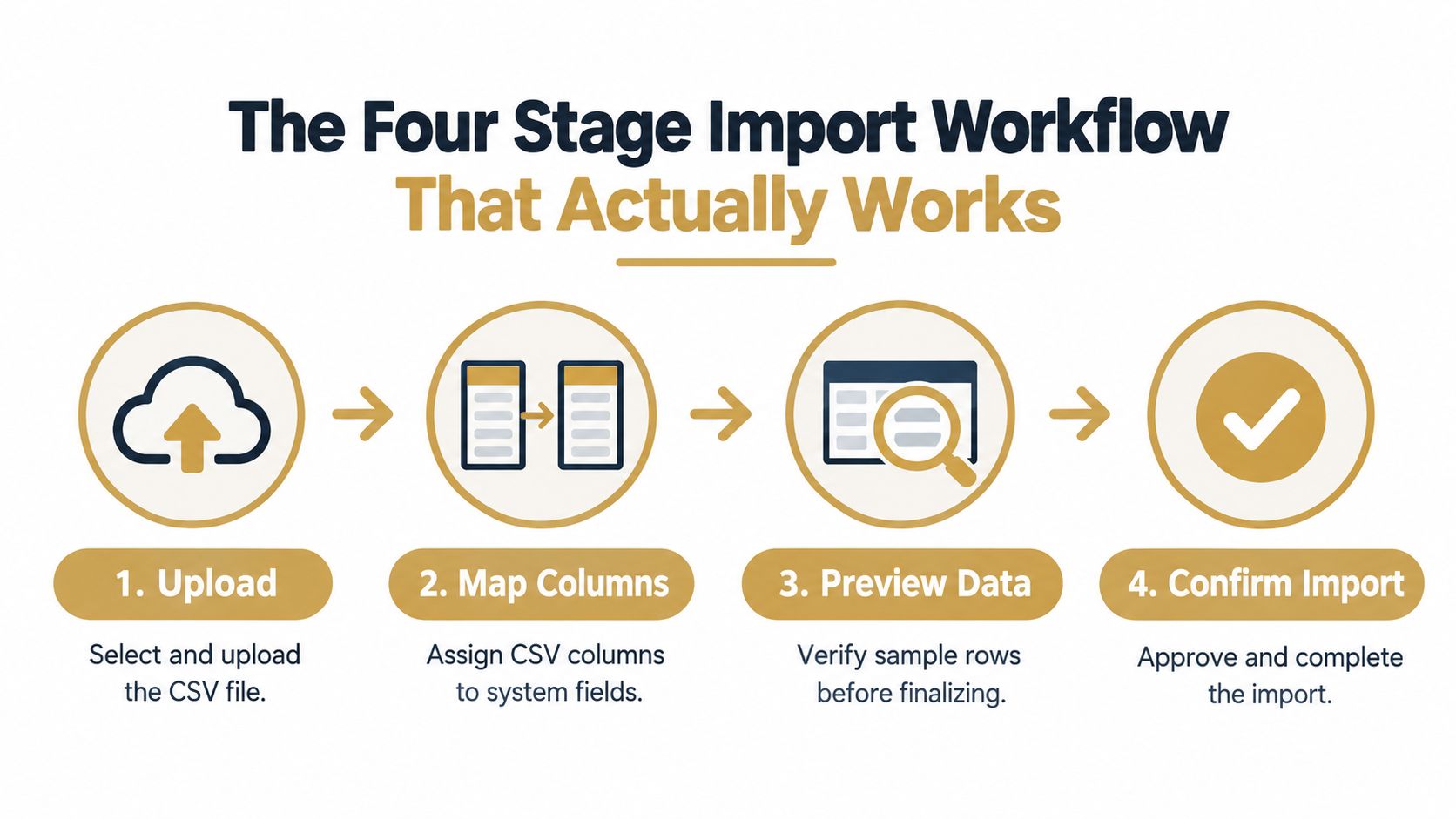
A dependable import follows a four-stage pipeline: file upload, column mapping, row validation, and batch submission, with checks for file type, encoding, field mapping, and session totals in this CSV import guide. That order matters because these files carry shot history. Once bad mappings or skipped rows enter the session, every average, dispersion view, and gapping report starts from compromised data.
Stage one upload
Upload should reject bad files early and clearly.
The importer needs to confirm that the file opens correctly, the delimiter is consistent, the header row exists, and the encoding does not scramble text fields. A permissive uploader creates more cleanup later because it lets a damaged file reach preview with just enough structure to look usable.
Use the original export when possible. If the file was edited, keep it to controlled cleanup only. Casual spreadsheet resaves often change formats, strip leading characters, or rewrite empty cells in ways that break parsing.
Stage two map columns
Column mapping requires the most attention.
Header matching is not clerical work. It is where field provenance gets decided. The importer has to match source headers to destination fields one by one, and it needs to preserve the meaning of each metric, not just find the closest label. Carry, spin, club speed, ball speed, launch angle, total distance, club name, shot labels, and session markers are common examples, but not every export defines them the same way.
Measured versus calculated values matter here. A spin field may represent a directly measured number in one export and a derived estimate in another. Two columns can share a name and still carry different confidence levels. If the source file includes any indicator of how a value was produced, keep that distinction instead of flattening everything into one generic metric.
Club fields cause plenty of trouble too. In clean files, "club" means the club used for the shot. In messy files, the same column can hold a practice label, a user note, or a simulator preset. Mapping the wrong one gives technically successful imports that are useless for later filtering.
Key takeaway: A clean import with bad meanings is worse than a loud failure.
Stage three validate rows
Row validation catches the damage that column mapping cannot.
The importer should test each row for structural problems before it writes anything into the session. Missing required values, malformed numbers, blank club labels, mixed units, and stray text inside numeric fields are common failures. The point is not to judge the shot. The point is to stop bad records from contaminating the session.
Useful checks often include:
- Required metrics present: Decide whether rows with blanks should be skipped or imported with known gaps.
- Numeric fields numeric: One text fragment inside a distance or speed column can break aggregation.
- Consistent club labels: "PW" and "Pitching Wedge" may both be valid, but they should not split one club into two buckets unless that was intentional.
- Shot status and notes: Warm-ups, deleted shots, or practice tags should be reviewed before they become permanent session data.
Previewing failed rows helps a lot. If five rows fail for the same reason, fix the file once instead of accepting five silent omissions.
Stage four batch submission
Batch submission should write the cleaned session as one coherent unit.
This is the last checkpoint before analysis starts. Compare imported rows against the expected shot count and check whether the mix of clubs looks plausible for that session. If the file should contain a full bucket and the importer lands short, stop there and inspect the misses. Partial imports often look normal until one club disappears from gapping or a practice block vanishes from the trend view.
Good imports produce queryable sessions, not just completed uploads. The end goal is data you can filter by club, date, session type, and metric confidence without wondering which numbers were measured, which were calculated, and which rows never made it in.
Device Specific Mapping for Garmin Rapsodo SkyTrak and More
Universal workflow helps, but device quirks are where imports usually go sideways. Header names differ. Some exports omit metrics entirely. Some fields look comparable until a closer read shows one system measured a value and another calculated it.
The right approach is normalization with skepticism. Map what is comparable. Flag what isn't.
Why Garmin files deserve extra attention
Garmin's Approach R10 lives inside the Garmin Golf app ecosystem under Profile > My Devices according to Garmin's Approach R10 support documentation. That matters because export behavior follows a paired-device workflow, not a standalone desktop model. In practice, that changes where golfers look for sessions and how they think about live use versus later import.
Garmin exports also surface one of the most important field-provenance issues in launch monitor CSV import. A separate import reference notes that Garmin CSVs can be hard to interpret across languages, may omit swing speed, tempo, and cloud-stored shot video compared with fuller data dumps, and may include a Spin Rate Type field that indicates whether spin was measured or calculated in this import documentation.
That last detail matters a lot. Two rows can both say "spin rate" while carrying different confidence levels.
What stays comparable and what doesn't
Some fields are usually straightforward across devices. Carry is often close enough structurally to map as carry. Club labels are messy but manageable with cleanup. Ball speed and launch angle are often present, though naming may vary.
Other fields need caution:
- Spin provenance: A spin value without context isn't always equivalent across exports.
- Club speed coverage: Some files won't include it even if the golfer expects it.
- Derived fields: Smash factor, apex, or similar rollups may be calculated differently.
- Language-specific headers: A good parser can still stumble if headers change language or notation.
The article on choosing the best launch monitor for driving range practice helps frame why these differences show up in real use. Devices are built for different workflows, so their exports reflect that.
Common CSV Field Mapping Across Popular Devices
| Metric | Garmin R10 | Rapsodo / SkyTrak / FlightScope | Uneekor / GSPro / Awesome Golf |
|---|---|---|---|
| Club | Often present but naming can vary by export settings or language | Usually present, but labels may differ in style | Often present, sometimes tied closely to sim session structure |
| Ball speed | Common mapping target when available | Common mapping target | Common mapping target |
| Launch angle | Usually maps cleanly if header names are recognized | Usually maps cleanly | Usually maps cleanly |
| Spin rate | Needs provenance review if a type field indicates measured or calculated | Often present, but interpretation still needs checking | Often present, especially in sim-oriented exports |
| Club speed | May be absent in some CSV exports | Often available depending on export scope | Varies by session and export format |
| Carry distance | Usually a core import field | Usually a core import field | Usually a core import field |
| Shot labels | May require cleanup if session notes or localized terms are present | May include labels that need normalization | Can reflect sim-session conventions instead of range-session notes |
A practical mapping standard
A clean cross-device import policy should do three things:
- Normalize names, not meanings: Rename headers into one internal schema, but don't pretend different provenance is identical.
- Keep nullable fields nullable: If a device omits a metric, leave it blank instead of backfilling with assumptions.
- Store session context: The same golfer may compare range sessions and sim sessions later. Session source should stay queryable.
That is also where a desktop workflow makes sense. Live pair is desktop-first and expanding from Garmin R10, while CSV remains the fallback and bridge across other export formats. One example of that approach is Dialed Golf Desktop, which supports launch-monitor practice through live pair and CSV import while keeping one golfer record across practice and on-course use. Used well, that model turns mixed-device history into something searchable instead of scattered.
Fixing the Most Common Import Failures Fast
Most import failures aren't dramatic. The file loads halfway, a few columns look blank, or the session total comes in light. Those are the dangerous ones because they look close enough to trust.
Fast troubleshooting starts with the symptom, not the device brand.
When the file opens wrong
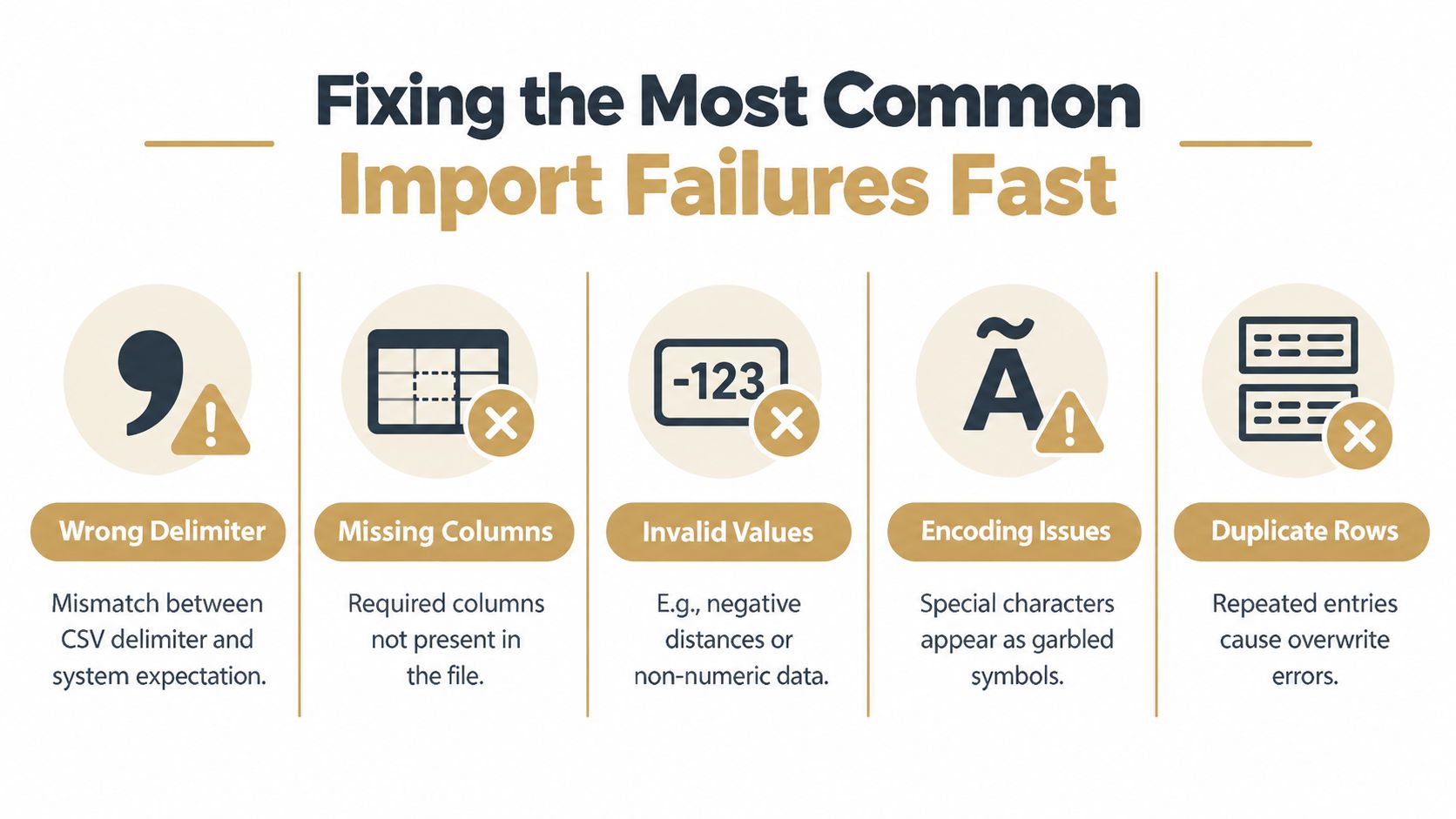
If every row appears shoved into one column, the delimiter doesn't match what the importer expects. Re-save the file with the correct separator or adjust the import parser to the actual delimiter.
If text looks garbled, especially around symbols or accented characters, it's usually an encoding problem. Export again in UTF-8 if possible, or convert the file before import.
Bad parsing often starts as a formatting issue, not a golf-data issue.
When rows load but the session is incomplete
This is the classic shot-count mismatch. The file technically imported, but the imported rows don't match the expected session.
Root causes usually include:
- Schema drift: The export template changed and a required field moved or got renamed.
- Invalid rows: Some shots were skipped because one or more required values failed validation.
- Mixed-club formatting issues: The session contains club labels or notes that break parsing on selected rows.
The fix is to compare expected shot count against imported count, then inspect the missing row range rather than redoing the whole session blindly.
When the columns map but the data is wrong
This is the nastiest category because the import can look successful.
A common example is positional mapping drift. The importer grabs the fifth column as carry because last week's template put carry there. This week's export inserted another metric earlier in the file, so every downstream field shifts by one. The session imports. The numbers are nonsense.
Another common issue is unescaped quotes or stray manual edits inside the file. One note field with a quote mark can split a row unexpectedly and throw off subsequent parsing.
Quick diagnostic checklist
Use this short pass before retrying the import:
- Trim whitespace: Clean header names and club labels.
- Standardize units: Don't mix unlike units inside one session.
- Check required fields: Make sure core metrics contain actual values, not blanks or text placeholders.
- Scan for duplicate rows: Repeated entries can distort totals or overwrite records.
- Review the last few rows: File corruption often shows up near the end of an export.
- Confirm mixed-club intent: A mixed-club session is fine if labels are consistent and the session is meant to stay together.
The goal isn't to make every CSV perfect. It's to catch the handful of issues that make a session look usable when it isn't.
Making Imported Data Usable for Practice and Gapping
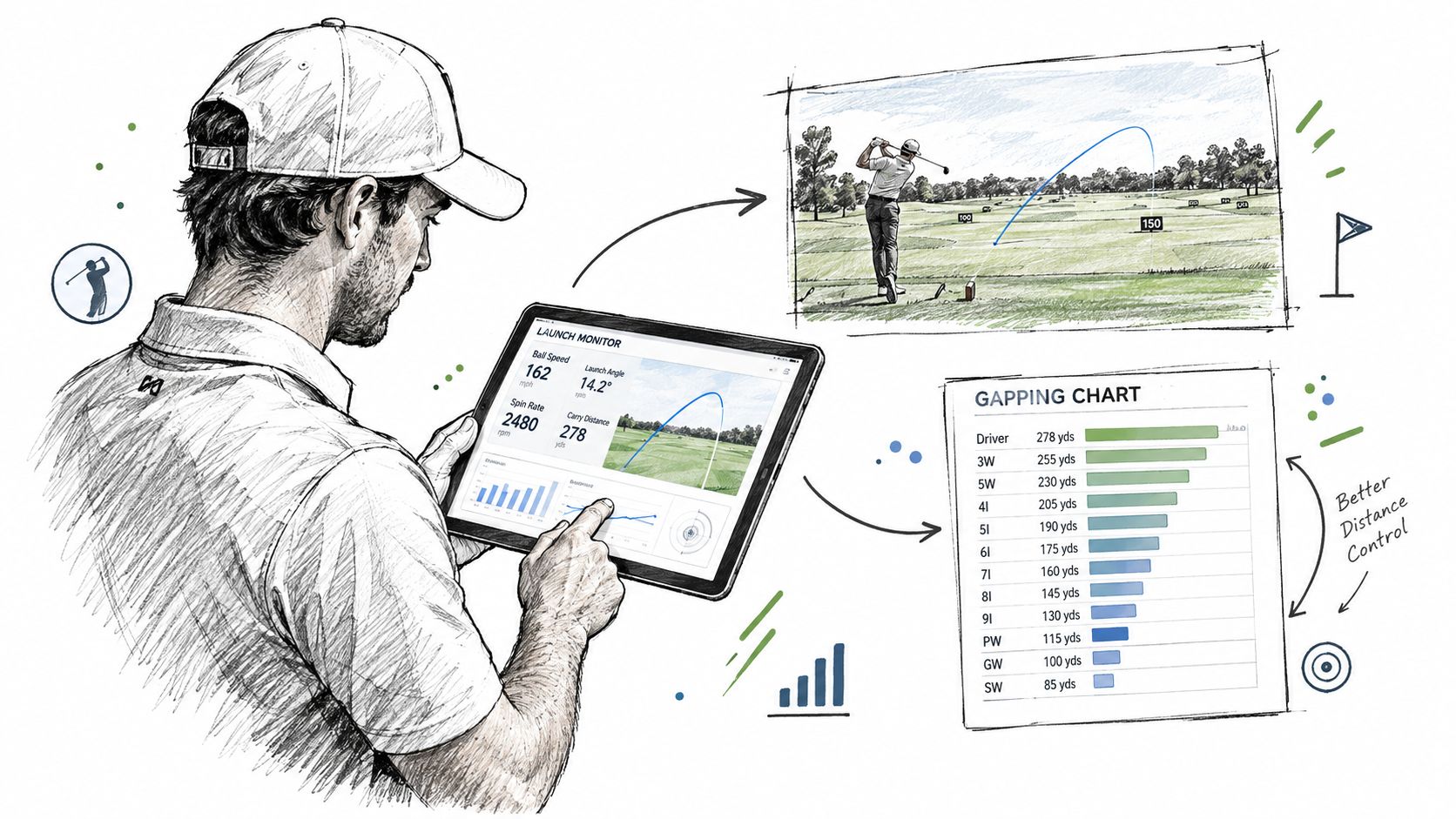
Imported rows only matter if they become sessions a golfer can revisit with confidence. The useful unit isn't the spreadsheet. It's the queryable practice session.
That means naming sessions consistently, keeping source context intact, and separating true gapping work from random mixed-bag range sessions. A clean import should let the golfer filter by club, compare like-for-like sessions, and spot whether changes came from contact, setup, or conditions. For gapping work, a repeatable structure matters more than squeezing every old export into one giant archive. Golfers building that habit should also review this guide on how to do a gap analysis.
A simple structure that holds up
For practice and gapping, three habits do most of the work:
- Run focused sessions: Keep one purpose per session when possible. Wedge matrix, mid-iron gapping, driver face-to-path work, or ball comparison.
- Batch old files carefully: Import historical sessions in small groups so mismatches are easier to catch.
- Choose live pair or CSV on purpose: Use live pair on desktop when the device and setup support it. Use CSV import when the session already happened elsewhere or when the export is the cleanest path in.
There is also the business side around clubs and academies. Club software in golf is often sold on recurring subscription pricing rather than one-time purchase, which is visible in market examples that list monthly and annual plans on this pricing reference. That same recurring model shows up in golfer software too, but the important distinction here is product role. Free web tools stay free. They are the top of funnel, not Pro.
Where pricing and record continuity fit
Golfer Pro runs across app and desktop at $9.99/week, $29.99/month, $149.99/6 months, and $249.99/year. Dialed Academy handles memberships and front desk for ranges and clubs at $99.99/mo or $999.99/yr, and the club keeps its dues. The value in this context isn't the payment model by itself. It's that one golfer record can follow practice and on-course use without splitting history across disconnected places.
A practical next move is simple. Pick one recent session, clean the CSV properly, verify shot count, normalize club labels, and import it as a named session you'll recognize later. Then do the next one the same way.
Dialed Golf connects on-course decision support, desktop launch-monitor practice, and academy operations around one golfer record instead of scattered exports and separate histories. If cleaner session imports and more usable practice data are the goal, visit Dialed Golf to see how live pair, CSV import, and golfer records fit together.